Content
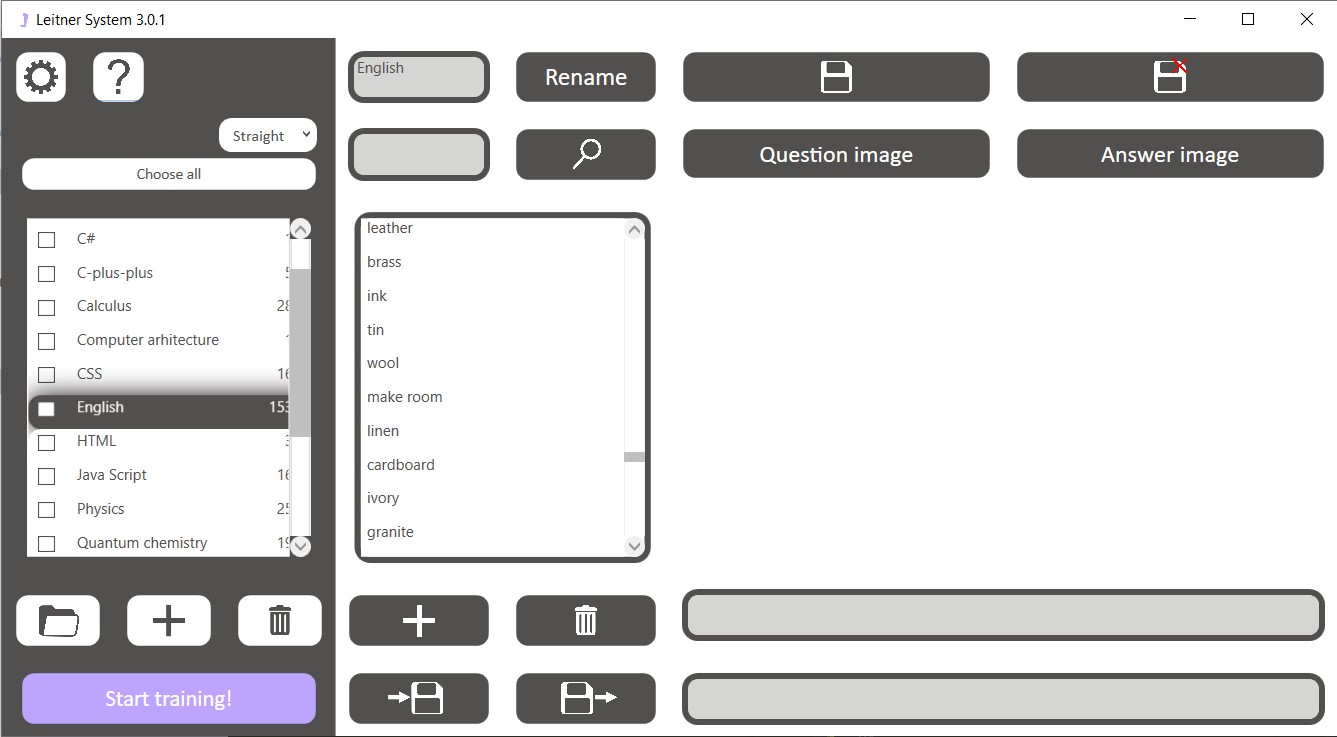
Interface overview
Main window consists of three parts: left for managing decks, central for managing cards and right for managing content of each card. At the top of left part there are two buttons: “Settings” and “Help”. Click first button if you want to change settings of our app and click the “Help” button to go to this manual page. Below there is a button that can be used to select all existing decks for training and combo box, By switching it to different states you can choose the way you will see cards at training. Lower there is a list of decks. You can see name of each deck and how many cards it includes. Moreover there is a combo box for each deck. It is absolutely the same us the previous one except that its value is applied only for particular deck. At the bottom of left section of window three buttons for managing decks are located. Use them to add, delete or choose folder for decks. Under these buttons the bigger one is located. This button starts new Leitner System session of cards repetition.
At the top of central section there are text box and button to change name of chosen deck. A little bit lower there is a field for search requests to find cards in selected deck. Under this field a list of card is located where you can see cards in selected deck. At the bottom of central part there are button to create and remove cards from deck and to import and export cards from Excel.
Right part of window displays selected card. Each card consists of question and answer parts. And each part includes text that you can input below and image that can be uploaded from your computer by using buttons at the top of section. Also, there are two buttons that you should use to save or discard changes that you made in selected card.
Getting started
- Click button to choose what folder will be used to save decks. If you want to remember your choice of deck set it in the settings.

- Click to create a new deck in list of decks

- You can change default name for deck by input it in text box at the top of central section. To save new name click “Rename”
- At the bottom of central section click button to create a new card
- Select this card by clicking on it
- At the right-bottom part of the window input questions and answer for this card
- Click "Question image" button to upload image for question or "Answer image" button to upload image for answer
- Don’t forget to click button to save your changes in selected card

- Create any number of decks and cards
- Click on checkboxes for decks that you want to repeat or click button to choose all decks.
- Click "Start training" button to start training
- Repeat training every day to memorize everything what you want!
Operations with decks
- Secelt folder for reading and saving decks by clicking button
- Create new deck by clicking button
- Remove selected decks by clicking button

- Rename selected deck by clicking "Rename" button
- Select deck for training by clicking corresponding checkbox or clicking "Select all" button
- Change type of repetition of selected deck by changing value of corresponding combo box
- Copy decks. To do this select decks and press "Ctrl + C"
- Paste decks. To do this press "Ctrl + V"
Operations with cards
- Create new card in selected folder by clicking button
- Remove selected cards by clicking button
- Change answer or question of selected cards by inputing new value inside text boxes at the right-bottom corner of the window
- Add question or answer image to card by clicking "Question image" or "Answer image" button respectively
- Save changes in card by clickng button
- Discard changes in card by clickng button
- Copy cards. To do this select cards and press "Ctrl + C"
- Paste cards to any deck. To do this select deck and press "Ctrl + V"
Types of deck repetition
Each deck can be repeated in three different ways:
- Straight: firstly the question of each card is shown and only then you can see the answer
- Reverse: Straight: firstly the answer of each card is shown and only then you can see the question
- Random: What way straight or reverse card will be shown is desided randomly
Moreovere, you can set type of repitition not for particular deck but for every deck. You should use combo box at the top pf left section for it. Notice: by default you cannot change type of repition for particular decks. To enable it turn combo box at the top of left section to "Manual" position
Import and export from Excel
To export cards to Excel select cards that you want to export and click


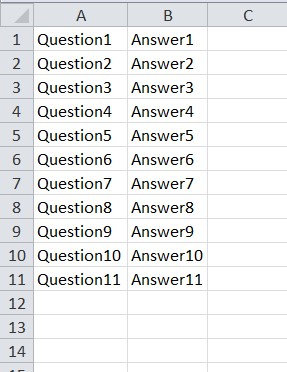
NOTICE: Import from excel is only possible if Excel file is in correct format. Each row is one card, the first coloumn is for answers and the second one is for questions. Images can not b imported or exported via Excel. Example of correct file format you can see below
Settings
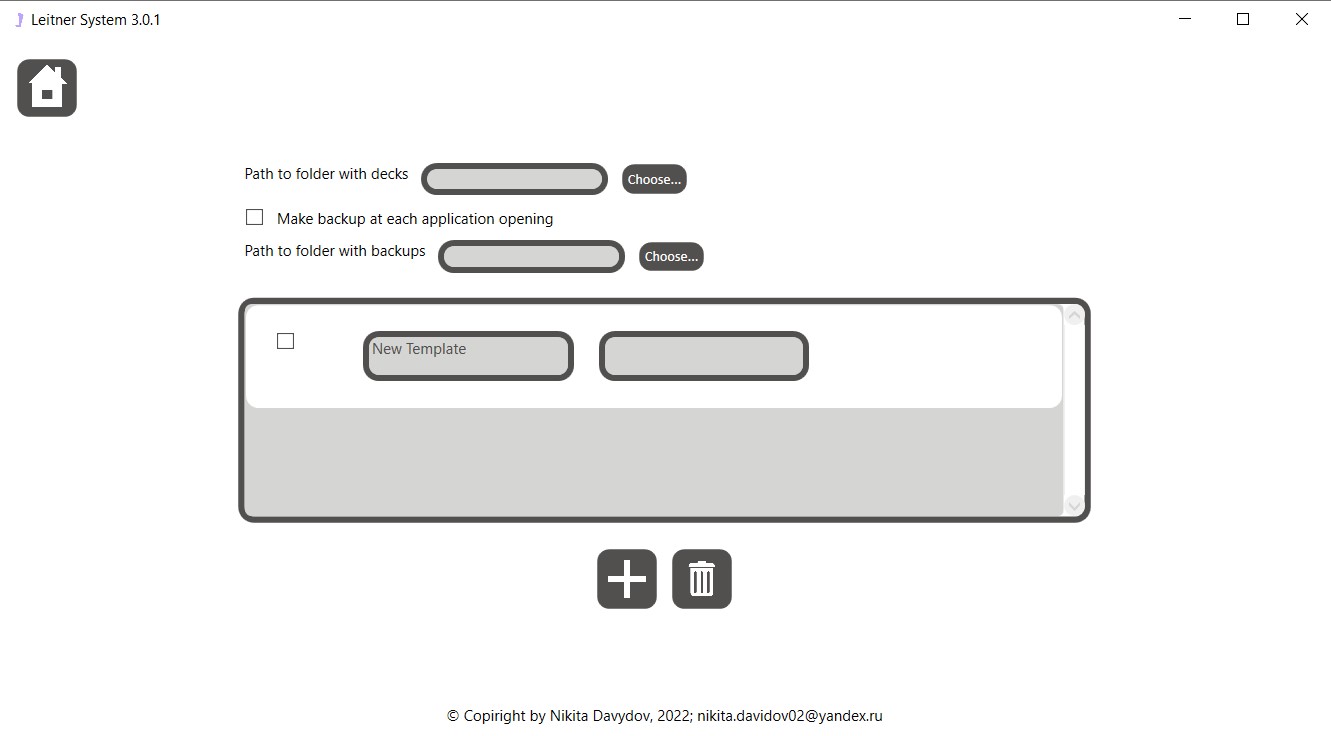
At this window you can set default deck folder by clicking "Choose" button. Moreover, there are backup settings. If you want your decks to be copyied on every application start click at corresponding checkbox. And choose folder for decks backup by clicking "Choose"
Also there are template settings in this tab. Template alows you to set training settings and remember it so every trainig will be executed with the same settings.To create new template click
Don't forget to press

Training
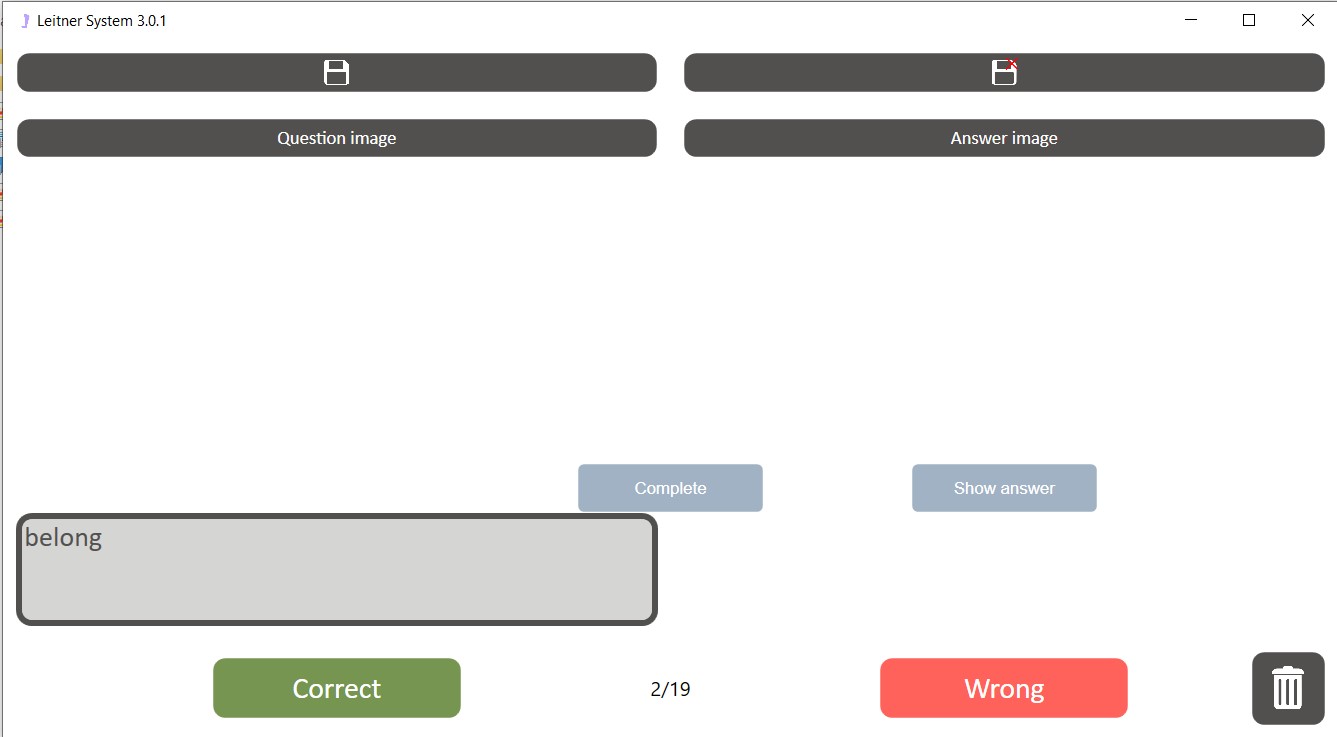
During the training app will show you cards from selected decks. Fistly you see the question. You should try to remember answer for this question. If you clearly formulated the answer in your head click "Show answer" button and compare your answer with correct. If they match each other press "Correct" button and you will see this card much more later otherwise click "Wrong" and you will see this card on the next day. Also you can make changes in card as you did at tne main window. Don't forget to save changes. Also you can delete current card by pressing
You can also complete tha training before all cards will be repeated by clicking "Complete".NOTICE: To save training results press "To home" button. If you don't do it training results won't be saved
Hotkeys
- Ctrl+C: Copy selected decks or cards
- Ctrl+V: Paste selected decks or cards
- Del: Delete selected cards or decks
- Ctrl+N: Create new deck or card
- Ctrl+O: Choose deck folder
- Ctrl+A: Select all cards or decks
- Ctrl+MoudeClick: Select a number of cardsat the same time
- Shift+MoudeClick: Select a range of cardsat the same time
- Enter: Show answer
- Left arrow: Right answer
- Right arrow: Wrong answer